In short
- The slow part was not the translation. It was the places where the app sat waiting. We cut four of them: taking the screenshot, reading the text, starting the translation, and waiting for the “done” signal.
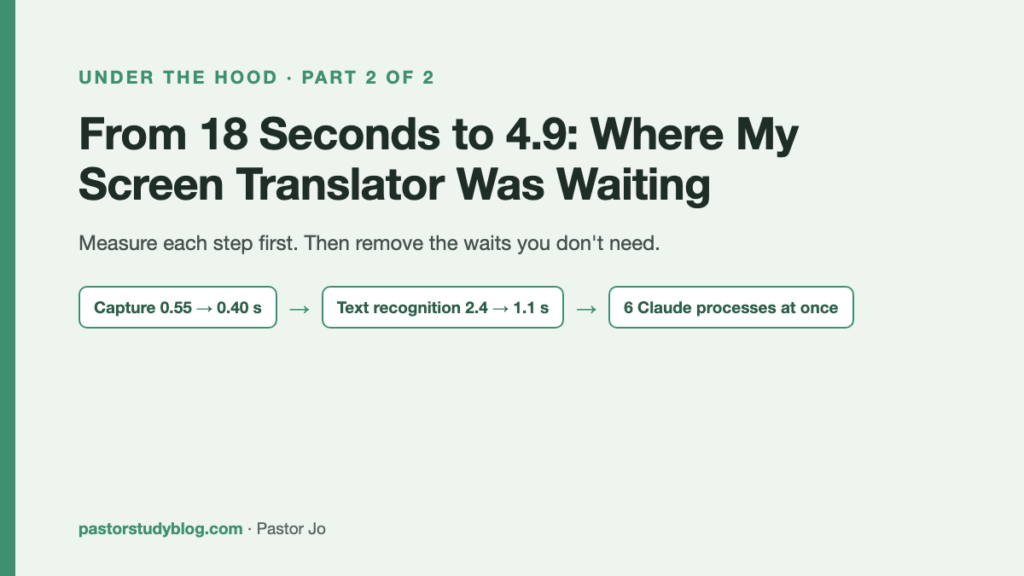
- With six Claude processes started ahead of time and the column split into paragraphs that are translated at the same time, one commentary column went from 18 seconds to 4.9.
- Automatic mode decides whether the screen has stopped moving by comparing tiny 64×64 pictures.
In part 1, I told the story of a small Mac app I built with Claude. It translates the English commentary under my mouse in Logos Bible Software into Korean, and it changed four times in about an hour. This time I want to open it up. You do not need to read code to follow along.
If you are about to ask Claude for a similar tool, the most useful idea here is a simple one: measure where it is slow before you ask for “faster.”
The app does four things. It takes a picture of the screen, reads the English text in that picture, sends the paragraphs to Claude to translate, and puts the Korean that comes back into the reading panel. Version 1 did those four steps one after another. That took 18 seconds.
| Version 1 | Version 2 | |
|---|---|---|
| Screenshot + text recognition | 3.2 s | 1.6 s |
| One commentary column (about 440 words), start to finish | 18 s | 4.9 s |
| A dense screen (11 chunks, see step 3) | not measured | 8.5 s |
1. Taking the screenshot: no file
At first the app used the screen capture command built into macOS to save a picture file, and then read that file back in. We switched it to Apple’s ScreenCaptureKit, which captures straight into memory with no file at all. 0.55 seconds became 0.40.
A 0.15-second gain looks tiny. But in automatic mode the app does this constantly, so the difference adds up. As a bonus, it can now capture a window even when another window is covering it.
2. Reading the text: one quick pass, one careful pass
The app reads the text in the picture with Apple’s Vision framework, which comes with the Mac. At first it read the whole window under the mouse in Vision’s accurate mode. But a Logos window is full of text I do not need: the Bible pane, the dictionary pane, the menus.
So now it reads in two passes. First, a fast pass over the whole screen, in 0.26 seconds, only to find where the columns are. Then an accurate pass on just the one column under the mouse.
For that second pass we also turned off Vision’s language correction. It checks the recognized words against a dictionary and fixes them, which takes real time. Claude reads the text in context while translating anyway, so the app does fine without it. The careful read went from 2.4 seconds to 1.1.
One attempt failed. I expected that cutting the column into pieces and reading them at the same time would be faster. It made almost no difference, so we dropped it.
3. Translation: six Claude processes, already waiting
This is where the biggest cut came from. Version 1 sent the whole column to Claude in one piece and waited until every word was written. On top of that, every translation paid the time it takes to start Claude up from scratch.
Version 2 works like this:
- The column is split into paragraph chunks of about 70 words. A paragraph shorter than 30 words is joined to the next one. A column usually becomes 5 or 6 chunks.
- Six Claude Code command-line processes are started ahead of time and left waiting. When the chunks are ready, the six each take one and translate at the same time.
- Each chunk goes into the reading panel as soon as its translation is done. Nothing waits for the whole column.
The default translation uses Claude’s fast model, Haiku. When I want a more careful translation, a “Redo with Sonnet” button in the reading panel sends it again. (The app’s buttons are in Korean; I have translated them here.)
This is not free. Each waiting Claude process uses about 325 MB of memory, so six use about 2 GB. The app therefore lets them go after 20 minutes without a translation, and it replaces any process that has been running for more than 25 minutes with a fresh one. After they have been let go, only the first translation is about a second slower.
4. Not waiting for the final signal
While measuring, we found something odd. After Claude had finished writing a translation, the final result signal that says “done” arrived 1.5 to 2 seconds later. The app was waiting for that signal, so every chunk sat idle for more than 1.5 seconds.
Now the app moves on as soon as it sees the signal that the written message itself has ended (message_stop), instead of waiting for the final result. The change was a few lines. It saves more than 1.5 seconds on every chunk.
5. Never translating the same paragraph twice
Every translated chunk is saved. When the same paragraph appears on screen again, the app does not send it to Claude. It takes the saved translation instead. That is why scrolling back brings a translation up in 0.8 seconds.
There was a trap here too. Even for the same paragraph, the text recognition reads spaces and punctuation a little differently each time. The app then decides it is a new paragraph and translates it again. The fix was in how each saved translation is looked up: the lookup key keeps only letters and numbers, all in lowercase. Small recognition differences disappear that way.
Automatic mode: how does it know the screen has stopped?
With automatic mode on, the app takes a small picture of the window under the mouse every 0.5 seconds. It shrinks that picture again to a 64×64 grayscale image and compares it with the previous one.
We measured it. A Logos screen left alone gave a difference of 0.00. Scrolling just slightly, by 2 points, gave 2.45. So the threshold is set at 0.6.
When the mouse and the screen have both been still for 0.9 seconds, the app reads the text. If the screen has fewer than 120 English characters (a menu, a page in Korean), or the text is the same as what it just read, it skips it. A 64×64 picture is so small that comparing two of them costs almost nothing.
Two cautions. Automatic mode translates whenever the screen changes, so leaving it on while browsing English web pages for a long time spends Claude usage on every new screen. It never translates the same text twice, but it is still better to switch it off with Control-Option-A when I am not using it. And because it is watching the screen, macOS shows the screen recording indicator in the menu bar the whole time it is on.
Which book am I reading?
To save translations book by book in version 4, the app had to know the name of the book I was reading. We could not find any way for Logos to tell another program, in real time, which book is open. So this, too, is read from the screen.
Logos shows a row of book tabs along the top, and the open tab has a thin orange line on top of it. The app looks for the row of tabs with close buttons (×) just above the column it is translating, and uses the name of the tab with the orange line as the book name.
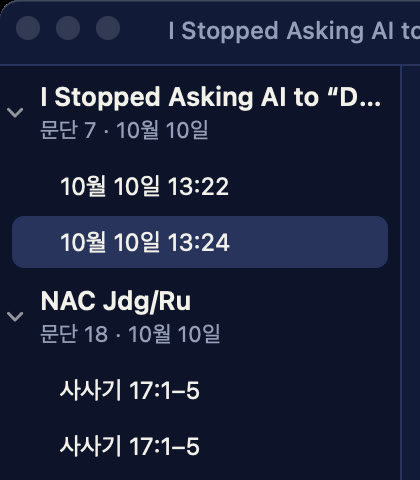
But the orange line only appears in the window you touched last. When there is no orange line, the app picks the tab whose background color is closest to the color of the toolbar right below it. At the far left of the row under the tabs sits the current reference (for example, Judges 17:1). That is how the app builds names like “Judges 17:1–5 ~ 18:3”.
There was an amusing trap. With English as the first recognition language, the Korean name for Judges, 사사기, came out as “AFAF71”. The Korean letters were read as Latin letters and digits that look similar. So only the reference field is read a second time with Korean first. Tab names, on the other hand, were more accurate with English first. If your Logos shows book names in a language other than English, this is the trap to watch for. In apps other than Logos, the window title is used as the book name.
The trap: a permission that reset on every rebuild
An app that captures the screen needs the Mac’s Screen Recording permission. That is a security setting, so I turn it on myself in System Settings. Claude cannot turn it on for me, and it should not.
The problem: every time Claude rebuilt the app, the permission was gone. When an app changes, macOS treats it as a different app. With four versions in an hour, I was going to grant the same permission four times.
So the app was split in two. A small outer shell app receives the permission and stays unchanged. Only the inner engine, which does the actual work, gets rebuilt, and it runs with the permission the shell was given. Since the split, the engine can be rebuilt any number of times without losing the permission. Only when the shell itself is rebuilt do I need to grant it again, and only once.
If you build Mac tools with an AI assistant and keep re-granting permissions after every change, this split is worth asking for.
Cost, and the line I keep
The app does not pay for a separate translation service. It runs inside the Claude usage I already have. Paragraphs are never translated twice, so going back and forth in the same book costs almost nothing. The heavy use comes from leaving automatic mode on while paging through new text.
As I said in part 1, I use these translations for my own study only. I do not publish translated text, and there is no translated book content in this post. Hebrew and Greek words break during text recognition, so the app does not guess at them. It marks them as “original language” instead. For passages where the original language matters, I still have to look at the original on the screen.
What I took away
Looking back, turning 18 seconds into 4.9 did not take any impressive technology. We measured where the app was waiting, one step at a time, and removed the waits it did not need. A picture that did not need to be a file. A screen that did not need to be read in full. A Claude that did not need to be started fresh every time. A final signal that came late. All of them were waits I had assumed were simply how things work.
If you are going to ask for a tool like this, here is the one thing I would suggest. Don’t only say “make it faster.” Say “first, measure how many seconds each step takes.” Once the numbers are on the table, you can see what to fix.
Together, the two posts tell one story. The speed came from measuring. The change that made the app worth using, keeping the translation I had already read, came from using it.
And I hope those saved seconds add up to a little more time spent with the text itself.