
In a church our size, the person clicking through the slides is usually also the person running the livestream. Most of the service, that works. The trouble comes in the busy stretches, like the announcements or the children’s sermon, where the slide changes and the camera should change with it. One hand is on ProPresenter, the other is on OBS, and a camera change gets missed.
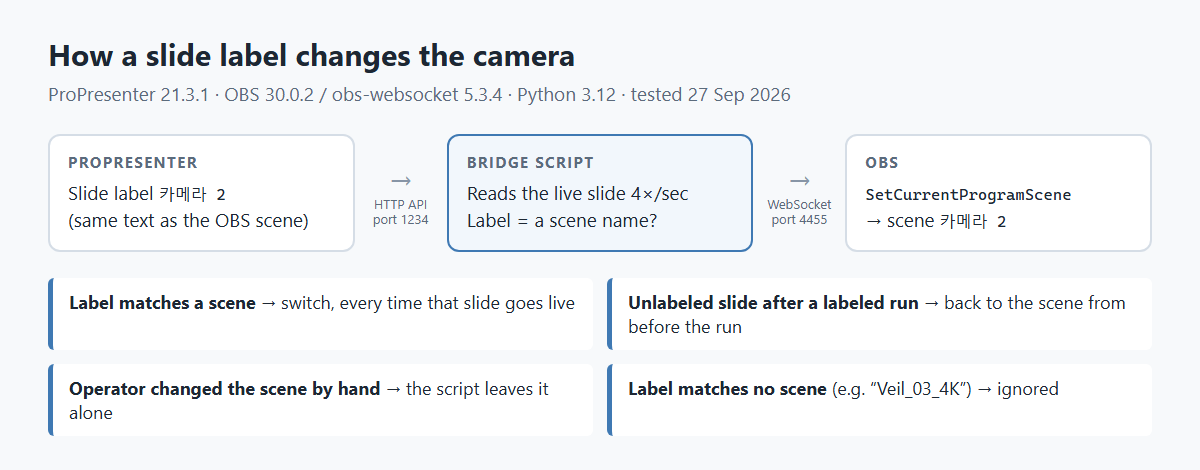
So I asked a simple question: can the slide decide the camera? If a slide is marked “Camera 2,” OBS should switch to Camera 2 the moment that slide goes live. It turns out you can do this for free, without plugins, with a short script. I built it with Claude in one sitting, and here is how it works, including the parts that didn’t work the first time.
My Setup
- ProPresenter 21.3.1 and OBS 30.0.2 on the same Windows 11 PC
- ProPresenter sends its output to OBS over NDI
- OBS scenes named
카메라 1to카메라 4(“Camera 1” to “Camera 4” in Korean), plus a main broadcast scene and one for worship motions with the children - Python 3.12 with two libraries:
requestsandobsws-python
Why ProPresenter Can’t Just Tell OBS
ProPresenter can attach “Communication” actions to a slide. In version 21, the device types I found for those were MIDI and plain network connections (TCP/UDP), and nothing that speaks WebSocket. OBS takes remote commands over WebSocket. So something has to sit in the middle.
One common approach is a virtual MIDI cable (loopMIDI) plus the Advanced Scene Switcher plugin for OBS. I didn’t go that way, and I haven’t tested it. It means installing two extra programs, and you’d have to put a “switch” action on every camera slide and a “switch back” action on the slide after it. I wanted fewer moving parts.
The other approach is to read ProPresenter’s own API. With networking turned on, ProPresenter answers simple web requests about what is on screen right now, including the label of the live slide. That became the plan.
The Rule: Slide Label = Scene Name
ProPresenter lets you put a label on any slide (right-click the slide → Label). Labels only appear in the operator’s view, never on the projector or the stream. I label a slide with the exact name of the OBS scene it should use.
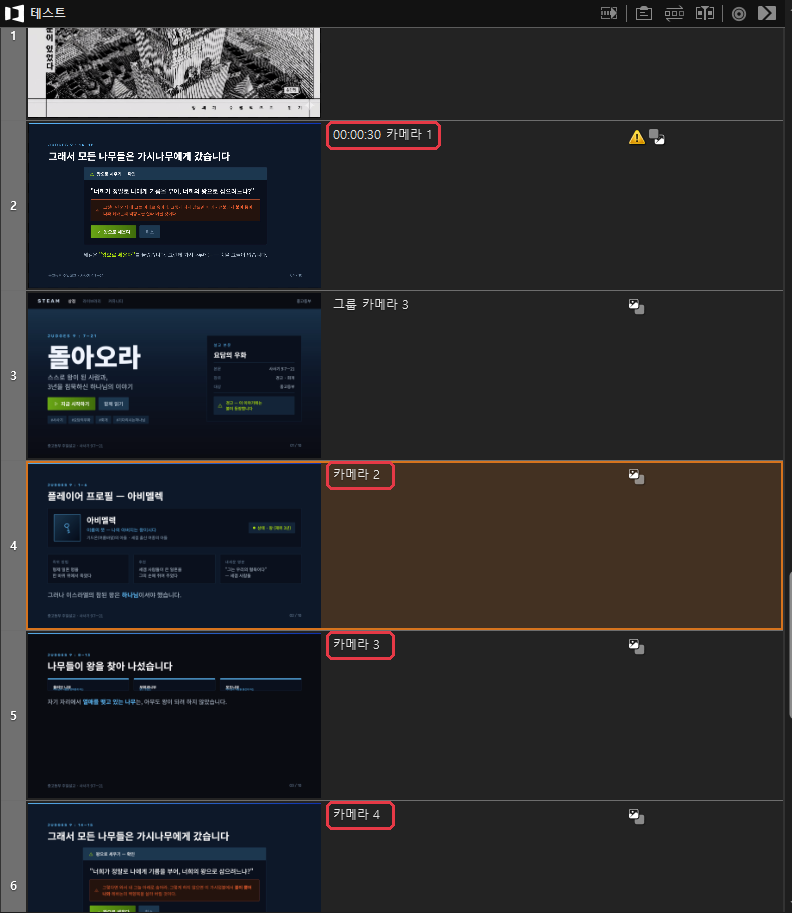
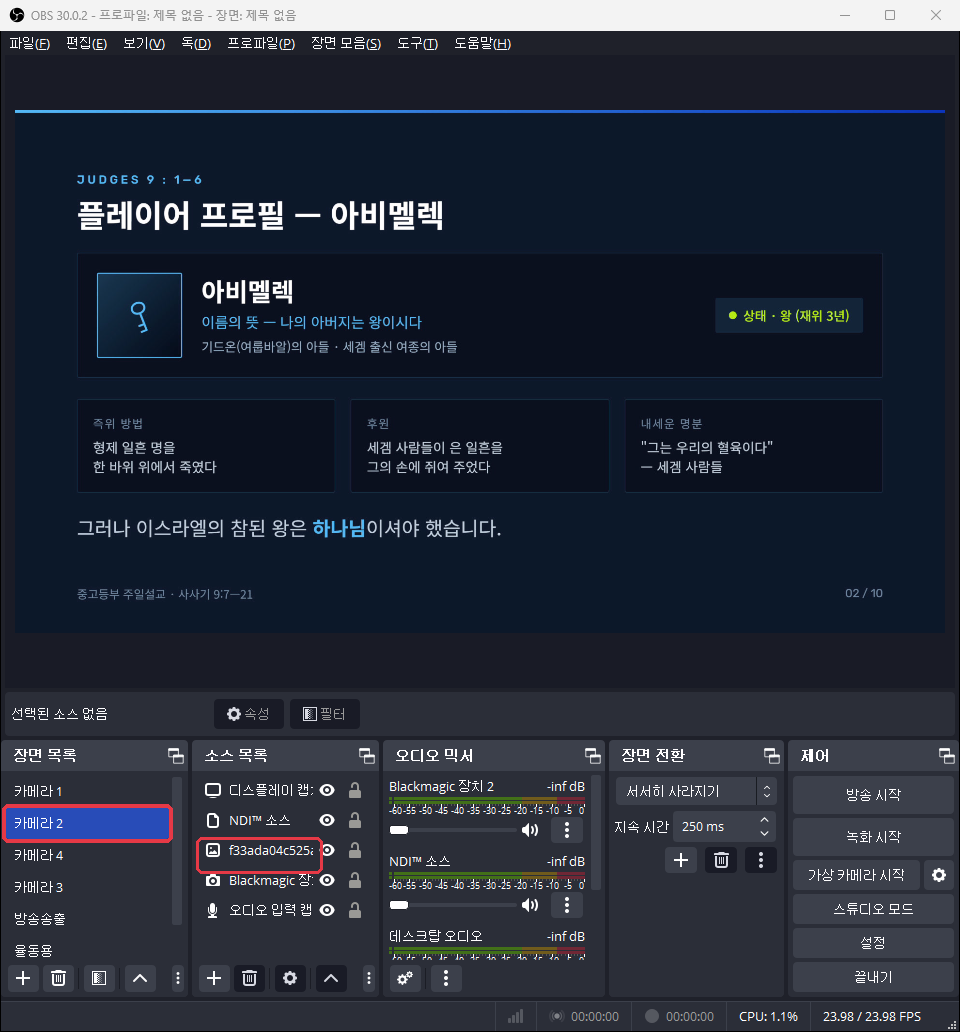
The script follows four rules:
- Label matches a scene: switch to it every time that slide goes live.
- Unlabeled slide after labeled ones: go back to whatever scene was live before the labeled run started. When the children’s sermon ends, OBS returns to the main shot on its own.
- Someone changed the scene by hand: leave it alone. The livestream operator always wins.
- Label matches no scene: ignore it. Some of my older slides already had labels like
Veil_03_4K, and those must not do anything.
Setting It Up
1. Turn on ProPresenter’s network API
In ProPresenter, go to Settings → Network and enable networking. Note the port shown there (mine is 1234). To check it, open this address in a browser on the same computer, using your port:
http://127.0.0.1:1234/versionYou should get a short line of text that includes ProPresenter 21.3.1 or your version.
2. Turn on OBS’s WebSocket server
OBS 28 and later include obs-websocket. In OBS, open Tools → WebSocket Server Settings, check “Enable WebSocket server,” and set a password. The default port is 4455.
3. Run the script
Install Python, then run pip install requests obsws-python. Save the script below as pp_obs_label_switcher.py, put your OBS password in it, and run it with python pp_obs_label_switcher.py. Leave the window open during the service.
"""Switch OBS scenes from ProPresenter slide labels.

A slide whose label matches an OBS scene name switches OBS to that scene.
After a run of labeled slides, the next unlabeled slide sends OBS back to
the scene that was live before the run -- unless someone changed it by hand.

Tested 27 Sep 2026: ProPresenter 21.3.1 (Windows), OBS 30.0.2 with
obs-websocket 5.3.4, Python 3.12.  pip install requests obsws-python
"""
import time

import requests
import obsws_python as obs

PP = "http://127.0.0.1:1234"            # ProPresenter > Settings > Network
OBS_HOST, OBS_PORT = "127.0.0.1", 4455  # OBS > Tools > WebSocket Server Settings
OBS_PASSWORD = "your-obs-websocket-password"


def pp(path):
    return requests.get(PP + path, timeout=2).json()


def live_slide():
    """(key, label) of the slide on screen, or (None, "") when nothing is live."""
    live = pp("/v1/presentation/slide_index").get("presentation_index")
    if not live:
        return None, ""
    uuid, index = live["presentation_id"]["uuid"], live["index"]
    pres = pp(f"/v1/presentation/{uuid}")["presentation"]
    slides = [s for g in pres["groups"] for s in g["slides"]]
    label = slides[index].get("label", "") if index < len(slides) else ""
    return (uuid, index), (label or "").strip()


def program_scene(cl):
    r = cl.get_current_program_scene()
    return getattr(r, "current_program_scene_name", None) or getattr(r, "scene_name", None)


def main():
    cl = obs.ReqClient(host=OBS_HOST, port=OBS_PORT, password=OBS_PASSWORD)
    last_key, in_run, restore, last_set = None, False, None, None
    while True:
        key, label = live_slide()
        if key != last_key:                          # a different slide went live
            last_key = key
            scenes = {s["sceneName"] for s in cl.get_scene_list().scenes}
            current = program_scene(cl)
            if label in scenes:                      # label names a scene
                if not in_run:
                    restore, in_run = current, True
                if current != label:
                    cl.set_current_program_scene(label)
                    print(f"label '{label}' -> scene '{label}'")
                last_set = label
            elif in_run:                             # first unlabeled slide after a run
                if current == last_set and restore != current:
                    cl.set_current_program_scene(restore)
                    print(f"labeled slides ended -> back to '{restore}'")
                in_run = False
        time.sleep(0.25)


if __name__ == "__main__":
    main()
It checks the live slide four times a second and only acts when a different slide goes live. This is a trimmed version of what I run. My own copy adds a log file, waits quietly when ProPresenter or OBS is closed, and refuses to start twice.
4. Label your slides
Right-click a slide → Label, and type the scene name exactly as it appears in OBS, spaces included. If you’ll use the same few labels every week, add them once under ProPresenter’s Settings → Slide Labels so you can pick instead of type.
What It Looked Like
Here is part of the log from my test, translated from Korean. Each line is a slide I clicked in ProPresenter:
[17:22:35] photo slide -> '카메라 3' (will return to '카메라 1')
[17:22:40] photo slides ended -> back to '카메라 1'
[17:43:25] label '카메라 4' -> '카메라 4' (will return to '카메라 3')
[17:43:28] label '카메라 2' -> '카메라 2' (will return to '카메라 3')
[17:43:30] label '카메라 3' -> '카메라 3' (will return to '카메라 3')
[17:43:32] label '카메라 1' -> '카메라 1' (will return to '카메라 3')
The first two lines are from an earlier test where a “photo” label pointed at Camera 3. They show the return rule working: when I clicked a slide without a label, OBS went back to Camera 1 by itself.
What Went Wrong the First Time
- It only reacted to changes in the label. The first version switched only when the live slide went from “no label” to “labeled.” In my test, every slide in the presentation had the same label, and OBS happened to be on that scene already. When I then changed OBS by hand and clicked the next slide, nothing happened, because from the script’s point of view nothing had changed. The fix was to act on every new slide, not on every new label.
- Two copies were running. At one point two copies of the script were running at the same time, both trying to control OBS. My full version now refuses to start a second copy.
- Old labels. Some existing slides already had labels that were not scene names. That’s why the script ignores any label that doesn’t match a scene.
Running It Every Sunday
A script you have to remember to start will eventually not be started. On our PC it now launches hidden when Windows signs in (a shortcut to pythonw.exe in the Startup folder). It is written to wait if ProPresenter or OBS isn’t open yet and to connect once they are. I haven’t been through a full Sunday with it yet, so I’ll update this post after a few weeks of real use.
My full version also reads the ProPresenter address from a small settings file, so it can follow ProPresenter on another computer on the same network. I haven’t tested that with our second machine yet, so I’ll report back when I do.
Things to Know Before You Try It
- Keep it on your church’s production network. ProPresenter’s API answered my requests without any password. Anyone on the same network could do the same, so keep your presentation and streaming machines off the guest Wi-Fi.
- Scene names must match exactly. “Camera 2” and “Camera2” are different scenes as far as the script knows.
- If OBS is closed, clicks are not queued. A slide you click while OBS is down won’t switch anything later.
- The operator stays in charge. A manual scene change in OBS always sticks. I think that’s the right default for worship. The automation should help the person at the desk, not fight them.
Next, I’d like to add a picture-in-picture scene for sermon photos, so a slide labeled “photo” puts the image in a corner over the camera shot. My full version already supports mapping a label to a differently named scene, so it should only take a new OBS scene. I’ll write that up once it has run through a real Sunday.