At our church we use ProPresenter on both a Mac and a Windows PC, and our sermon media lives in Google Drive. On the Windows PC, bringing that media into ProPresenter kept failing in a way I couldn’t explain. I would drag a video onto a slide and nothing would happen. No error message, no spinning icon. The slide simply stayed empty.
It happened most often with files that had Korean names, but not only with those. A clip called 01.mp4 refused to go in, too. On the Mac, the same kind of files worked fine.
On 27 September 2026 I finally sat down with Claude, the AI assistant I use for most of my technical work, and traced it to the end. The cause turned out to be simple, but we took three wrong turns before finding it. I’m writing all of them down, because the wrong turns are probably where you are right now.
My Setup
- ProPresenter 21.3.1 on Windows 11 Pro (build 26200)
- Windows display language and system locale: Korean
- ProPresenter library inside OneDrive (
OneDrive\Documents\ProPresenter), because OneDrive had taken over the Documents folder - Sermon media on Google Drive for desktop, which shows up as drive
G:
Three Guesses That Were Wrong
1. OneDrive was hiding the files
OneDrive can replace files you haven’t opened recently with online-only placeholders. If ProPresenter tried to read a placeholder, it might see nothing. It was a reasonable theory, so we checked every one of the 2,853 files in the library’s Media folder. All of them were fully downloaded. I set the folder to “Always keep on this device” anyway, which is good practice for a presentation machine, but it wasn’t the cause.
2. Mac-style Korean file names
A Mac can store a Korean syllable as separate pieces (a form called NFD), while Windows stores it as one character (NFC). The names look identical on screen, but Windows compares them letter by letter. Of the 165 Korean-named files in my library, 6 were in the Mac form. We converted them. Nothing changed, and when we checked, none of those six were used in any presentation.
3. The Google Drive virtual drive
ProPresenter’s log had a line saying it couldn’t watch a file on G:: “Input watch path is neither a file nor a directory.” Google Drive’s G: is not a real disk, so this looked like the answer. It wasn’t. That particular file had been deleted, and the same message appeared for deleted files in my ordinary Downloads folder. We copied the sermon folder to the local C: drive and the video still refused to go in.
The Log Line That Explained Everything
ProPresenter 21 has a separate helper program that opens each media file to make a thumbnail and read its details. It keeps its own log here:
%LOCALAPPDATA%\RenewedVision\ProPresenter\Logs\helper-snapshots.YYYY-MM-DD.txtEvery time I dropped the video, the same pair of lines appeared:
ERROR ssapi::engine: Error opening media file "C:\\ProPresenter\\Media\\Assets\\설교슬라이드_16x9\\01.mp4" err=��� ��Ƽ����Ʈ �ڵ��������� �����ڵ� ������ ������ �����ϴ�.
ERROR helper_snapshots: Invalid file: "C:\\ProPresenter\\Media\\Assets\\설교슬라이드_16x9\\01.mp4"
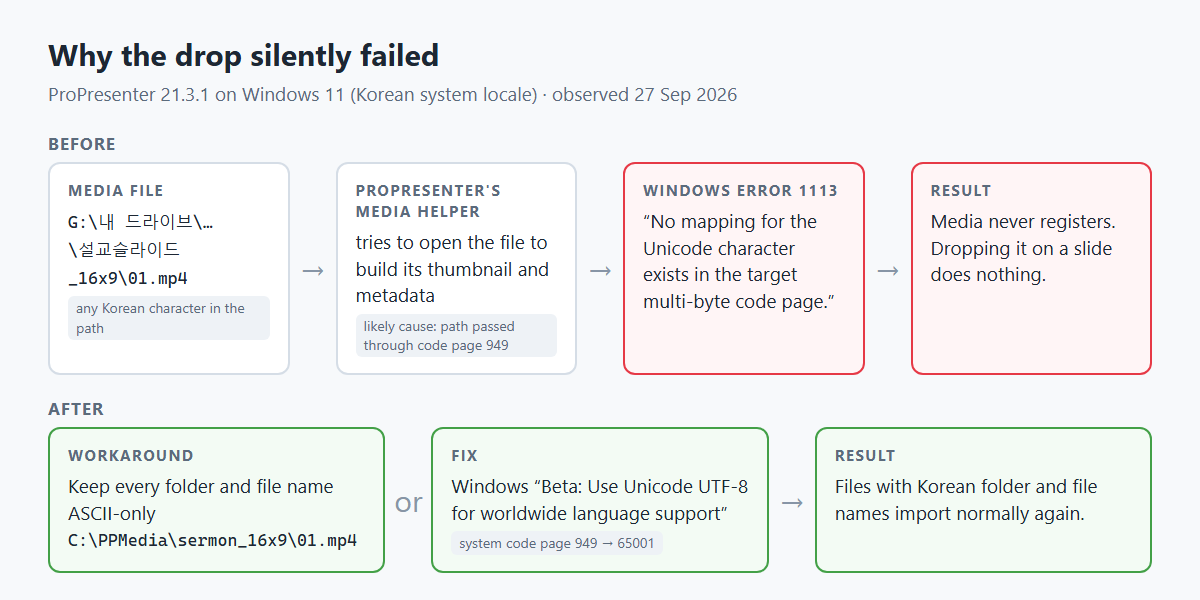
The error text was garbage because it was a Korean Windows message written into the log in the wrong encoding. A few characters survived, and they were enough to reconstruct it. It was Windows error 1113:
No mapping for the Unicode character exists in the target multi-byte code page.
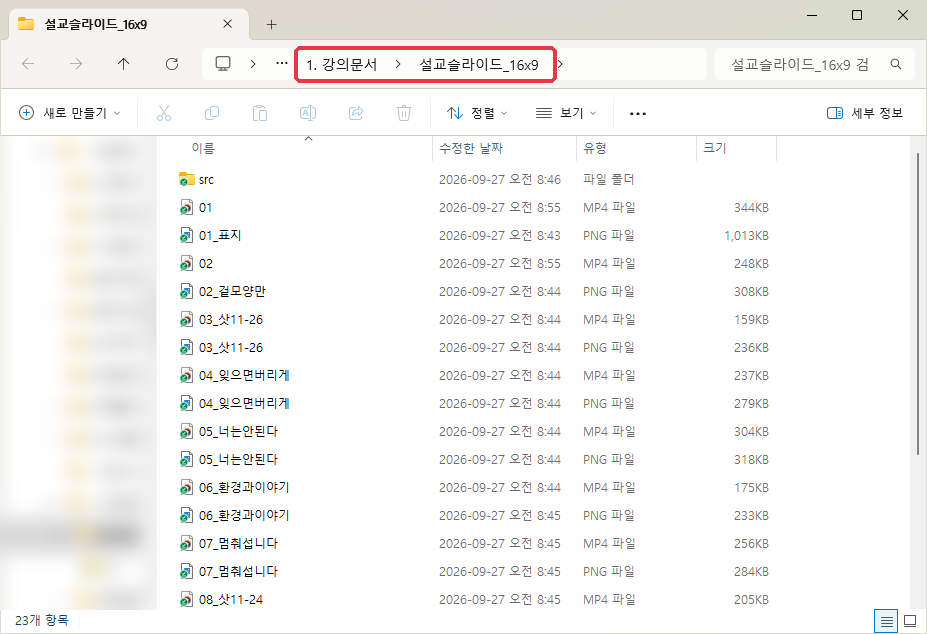
Once we knew what to look for, the pattern was obvious. Every file that failed had Korean somewhere in its path. Sometimes it was the file name (기폭제.jpg). Sometimes the file name was plain English, but a folder above it was Korean: 설교슬라이드_16x9, 내 드라이브 (Google Drive’s “My Drive”), or 바탕 화면 (Desktop). That explained the 01.mp4 mystery. The file name was fine; the folder wasn’t.
My guess at the mechanism, and it is only a guess: somewhere in that helper, the file path is converted using Windows’ older “code page” system instead of Unicode. On Korean Windows that code page is 949, and the conversion fails on Korean text. A Mac handles paths as Unicode, which would explain why the Mac never had the problem.
In ProPresenter’s main log, the same failure showed up as SnapshotFailedError: Snapshot in a Failed state according to DB. If you see that line, check the helper log for the real error.
The Test: An All-English Path
To confirm it, we copied the sermon folder to a path with no Korean anywhere, and renamed each file to just its number. 03_삿11-26.mp4 became 03.mp4, and so on.
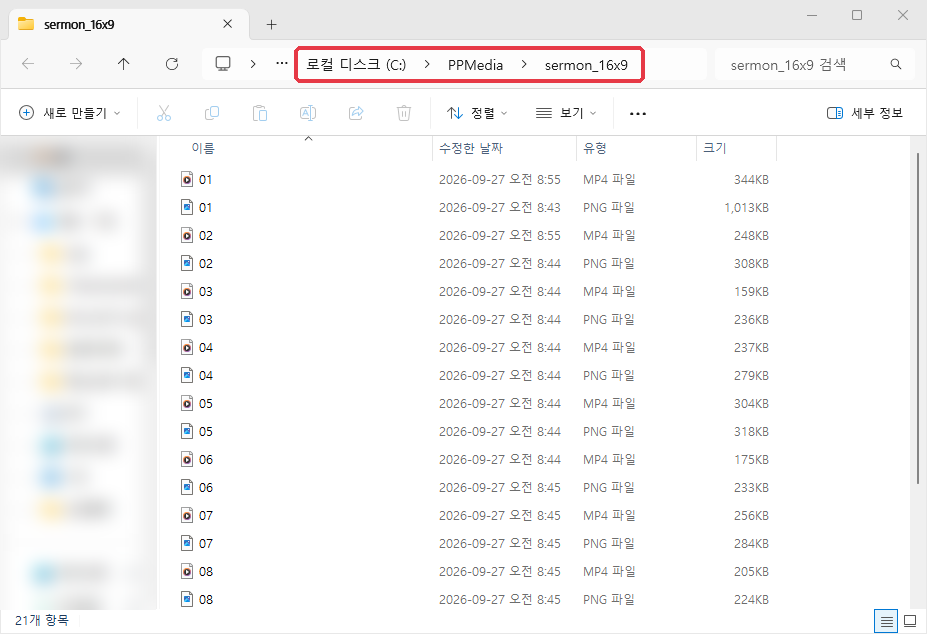
I dragged C:\PPMedia\sermon_16x9\01.mp4 onto the slide, and it went in on the first try. After all the dead ends, that was a good moment.
The Fix: Let Windows Use UTF-8
Renaming everything is a workable habit, but Korean folder names are part of how our church organizes its files. Windows has a setting that switches that old code page system to UTF-8, which can represent any language:
- Open Control Panel → Region (you can run
intl.cpl). - Go to the Administrative tab.
- Under “Language for non-Unicode programs,” click Change system locale… (it needs administrator rights).
- Check Beta: Use Unicode UTF-8 for worldwide language support, then restart.
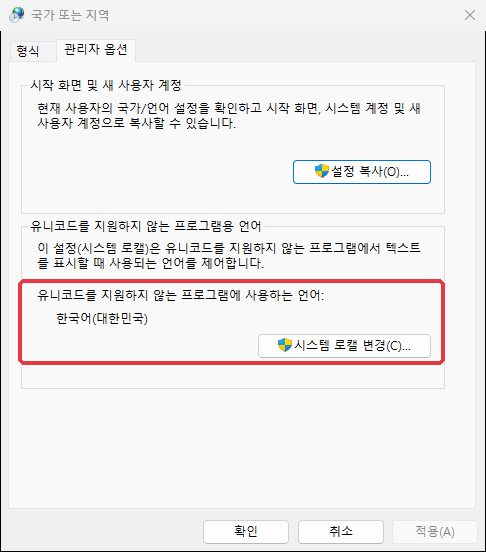
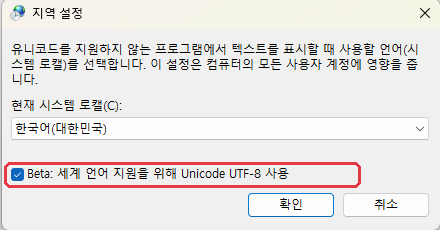
After the restart, the system code page changed from 949 to 65001 (UTF-8), and files with Korean folder and file names went into ProPresenter normally again.
Two cautions. First, Microsoft labels this setting “Beta,” and it changes text handling for the whole computer. Some older programs that never learned Unicode may start showing garbled Korean. If that happens, uncheck the box and restart to undo it. Second, a file that already failed before the fix may keep failing. In the logs, ProPresenter answered repeat attempts on the same path with “Reference already exists.” Test with a file you have never tried to import, or copy the old one to a new name.
Which Option Should You Choose?
| English-only paths | UTF-8 system setting | |
|---|---|---|
| What changes | Only where you keep media | How the whole PC handles text |
| Risk | None | Older non-Unicode programs may show broken text |
| Effort | Rename and copy files every week | One checkbox and a restart |
| Good for | A machine that runs other old software | A dedicated presentation PC |
I turned the setting on for our presentation PC. I’m also going to keep Sunday media in short, numbered file names from now on. It costs nothing and removes one more thing that can go wrong minutes before a service.
What I’d Tell Another Pastor
- Read the helper log before you guess. The answer was in
helper-snapshotsthe whole time. We found it only after three theories that each sounded convincing. - Check the whole path, not just the file name. One Korean folder anywhere above the file is enough to break it.
- Don’t edit ProPresenter’s settings files by hand. While testing, we tried to move the library out of OneDrive by editing its configuration files. ProPresenter keeps the real library location in an internal database, so the edit left two libraries half-registered and made things worse until we restored the backups. Use ProPresenter’s own settings for that.
- I have only tested Korean. Japanese and Chinese versions of Windows also use multi-byte code pages, so I would expect the same symptom there, but I haven’t seen it myself. If you run into it, the log line above is what to send to Renewed Vision support.
A word about the AI part. Claude read thousands of log lines faster than I ever could, and it decoded the garbled error. It also confidently led me down the OneDrive and Google Drive paths first. What solved the problem was going back to the evidence and testing one thing at a time. That is how I’d describe using AI in ministry work in general: it makes the search faster, but you still have to check where it’s taking you.