In short
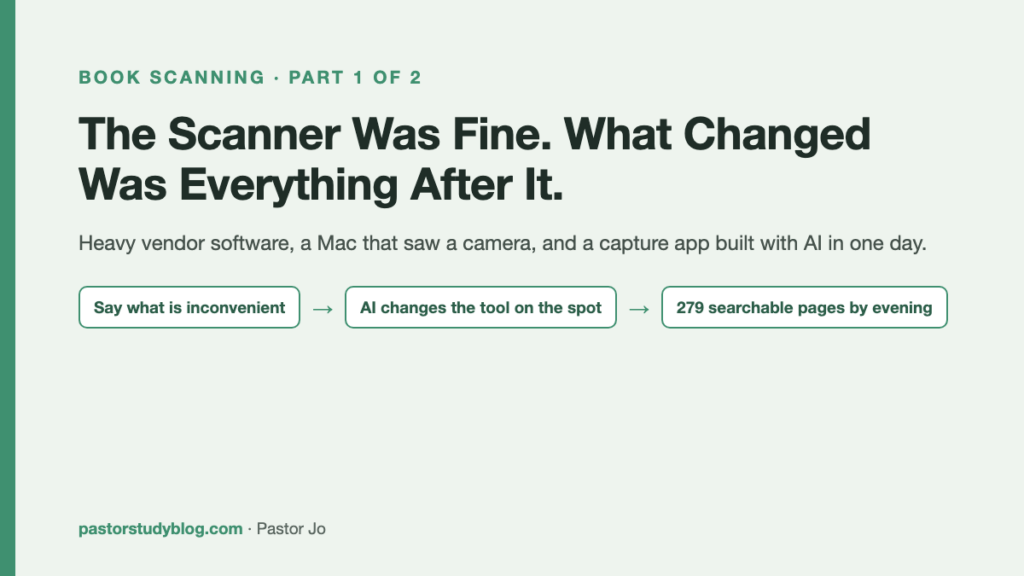
- On 13 October 2026 I was downloading the software for my book scanner. It was hundreds of megabytes and slow, and I said out loud: “We’re going to rework all of this for our own books anyway. Do I really need to install it?”
- My Mac already saw the scanner as an ordinary camera. So that morning, with AI, I built a small app that only captures pages. By evening it also flattened the curved pages, read the text and made a searchable PDF: 279 pages in 17 chapters.
- Capture, flattening, text recognition and searchable PDFs are things scanner software already does. The point of this post is different: every time I said what was inconvenient, the AI changed the tool on the spot.
This is the first of two posts about scanning my own books with AI. I want to be clear about the roles from the start. In this post the AI is the maker: it wrote the tool. In part 2 it becomes the reader: it checks the recognized text against the page photos, and I show exactly what that cost.
One more note. You won’t see any book pages here. The book I scanned is a copyrighted commentary, scanned for my own study, so this post has no page photos and no quoted text. Just what happened that day, with the times and the numbers.
“Big and slow”
On the morning of 13 October 2026, I was downloading the vendor’s software for my book scanner. It is an overhead scanner: the book lies open on the desk and a camera head looks down at it. The download was hundreds of megabytes, and it was slow. While I waited, this came out of my mouth:
“Big and slow. We’re going to rework the output for our own books anyway. Do I really need to install this?”
That question started the day, but the plan behind it was a week old. On 7 October I had scanned a few pages, and the results weren’t flat. The pages came out curved. That day I made a plan for what I actually wanted: a flattened PDF, a text file I could read straight through, and later, material I could load into Logos Bible Software. The comment on the 13th put that plan back on the table.
The scanner was already a camera
I asked Claude, the AI assistant I work with on my Mac, to check how the Mac saw the scanner. The answer surprised me: as an ordinary camera.
That changed the question. If the Mac can already see the picture, then the capture part of the job is mostly “take the camera image and save it.” So instead of the big package, we built a small app that does only that, with its own camera permission.
At 10:10 a.m. the first window opened. The app is called 책스캔, which is simply Korean for “Book Scan.” The scanner’s picture came into the preview at 4320×3240, ten frames per second. On my 2019 Intel iMac, the app used about 9% of the CPU and about 90 MB of memory.
The foot pedal did nothing
Things started well, but one problem ate most of the morning. The scanner comes with a foot pedal so you can capture a page without using your hands. On the Mac, the pedal didn’t show up anywhere in the list of connected devices.
I pressed the pedal about nine times while Claude looked for the place inside the scanner where its signal shows up. Once we found it, the app could read it. Now a press of the pedal takes the picture, even when the app’s window is hidden behind other windows. Later in the day we also added capture from the keyboard and an option to capture automatically when a page is turned.
First test: 63 pages, timed
I tried it on the first book. Here is how long each step took:
- Shooting 38 photos: about 4 minutes
- Splitting each photo into two pages: 7 seconds
- Flattening the curved lines of text: 2 minutes 41 seconds
- Reading the text with the Mac’s built-in text recognition, in two passes (once for Korean, then once more for English only): 4 minutes 39 seconds
That made 63 pages. Building the flattening and the two-pass reading with Claude took 38 minutes. That is not processing time. That is how long it took to write those two features, on the spot.
Korean, by the way, the Mac already reads well: about 10 wrong characters in 10,000, or 0.1 to 0.2%. Greek and English are another story, and that story is part 2.
I said it, and the tool changed
The rhythm of the day was simple. I said what bothered me, and the tool changed.
Around 1 p.m.: shadows and a tangled reading order
I mentioned two things. First, the letters looked like they had shadows around them, a gray halo. Second, the text file was hard to read straight through. Page markers broke into the middle of sentences, and footnotes were mixed in between paragraphs of the main text.
For the shadows, Claude added a step that resets the white level on every page, which cleaned up the halos and the gray edges. The page layout stayed the same, so the text that had already been read could be reused: the rebuild took 12 seconds, with no second reading pass. For the text file, page markers no longer split a sentence, and each footnote now sits in a box right under the paragraph that cites it.
Around 3:30 p.m.: where is the center?
Next I said: “I can’t tell where the exact center is, or how far to open the book so it comes out straight.” The preview then got a guide drawn over it: a dotted center line, the spine line the app detects, and the top and bottom edges of the book shown in green, yellow or red depending on how much they curve. A sound now plays on each capture. The guide appears only on the screen. It never ends up in the photo.
With the guide in place, we measured the photos I had taken so far. The spine was always 3 to 5% to the left of center. I had a habit I didn’t know about.
Around 5 p.m.: a black screen
Then the app’s preview went black. Earlier I had opened the vendor’s software for a moment to try a page or two. Even after I closed it, a helper it left running in the background kept hold of the scanner, and nothing else could use it. Unplugging the scanner and turning it off and on did not fix it by itself. Once that helper was shut down and the scanner was plugged back in, the picture came back.
So I can tell right away if it happens again, the app now shows a notice when no new picture has arrived for six seconds. The bigger lesson: it’s one or the other. The vendor’s software and our app cannot share the scanner.
“Done,” and a page that made no sense
At 5:10 p.m. I said, “Done shooting.” Together with the morning’s photos, there were about 140 in all. The day’s result: 279 pages in 17 chapters.
Paging through, I found a page that made no sense. The sentences didn’t connect. The app had found the wrong spot for the spine, the line where it splits each photo into two pages. In 29 photos it had cut through a dense column of text or through a margin. Claude changed the approach: first look for the blank band between the two pages, then find the spine inside that band. That fixed it.
Every fix that day started the same way: a person reading and thinking, “This is odd.”
At 6:30 p.m. I re-shot two pages that had come out blurred because something moved. No processing could save a blurred photo. Shooting it again was the only answer.
Along the way I also considered shooting the pages with my mirrorless camera for more resolution. I dropped the idea on the spot. It would not have been productive.
The whole day in one table
| What bothered me | What the AI built on the spot | Result |
|---|---|---|
| The vendor’s software is big and slow | Confirmed the Mac sees the scanner as a camera, then built a small app that only captures | 4320×3240 at 10 frames per second, about 9% CPU and 90 MB of memory |
| The foot pedal does nothing on the Mac | Found where the pedal’s signal shows up in the scanner and read it from there | The pedal captures a page. Keyboard capture and auto-capture added |
| I can’t tell where the center is | Center line, spine line and colored edge-curve guide over the preview, plus a capture sound | I can straighten the book from the screen. The guide is never in the photo |
| The pages aren’t flat | Uses the lines of text themselves as a ruler to measure the curve, then flattens it | 63 pages flattened in 2 minutes 41 seconds |
| The letters have a gray halo | Resets the white level on each page and removes shadows and edges | Rebuilt in 12 seconds without reading the text again |
| The reading order is tangled (two columns, footnotes, page markers) | Reads the two columns separately, puts footnotes in a box under their paragraph, keeps page markers from splitting sentences | The text reads straight through |
Where I fell down
- A wrong cut at the spine produced a page that made no sense. A person reading it caught it.
- Opening the vendor’s software for a moment was enough to lock the new app out of the scanner. Use one or the other.
- A blurred photo can’t be rescued by any processing. Re-shoot it.
Without the AI, isn’t this just scanner software?
When we planned these two posts, I raised that objection myself. Capture, flattening, text recognition, a searchable PDF: the vendor’s software does those things too. Without the AI, this is ordinary scanner functionality. That’s true, and I don’t want to dress it up.
What was different was how the tool got made. I said “the letters look like they have shadows” and “I can’t tell where the center is,” and within a few hours each of those sentences came back as a feature on the screen. The scanner itself was fine from the start. What changed was everything after it: the part where the output gets shaped to fit our books and the way I actually work.
By the end of the day I had 279 pages in 17 chapters, a searchable PDF, a text file I can read straight through, and a separate file for each section of the book.
Why there is no download link
I did think about packaging the app for others. My answer for now: if a lot of need shows up, we can share it then, but I don’t see much demand. It was built around one scanner and one Mac, and as a tool we use inside our church, it’s enough. So there is nothing to download in this post.
Next: the lines the Mac couldn’t read
This day did not show perfect OCR or impressive technology. If you are digitizing your own library, or you bought a book scanner and were let down by the output or the software, I hope it’s a small, useful reference. If you can say plainly what is inconvenient, a tool that fits can be built around it, sometimes in a single day.
In part 2 the AI changes jobs, from maker to reader. Mac text recognition + AI check: the Greek and English lines in this book, checked against the page photos, and every dollar that checking cost.