In short
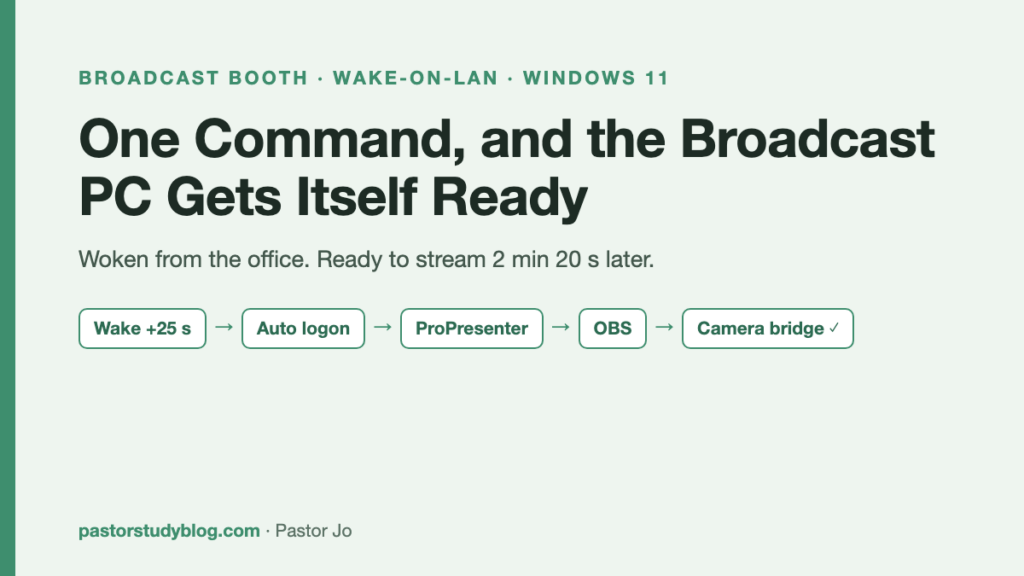
- One command from my office, and about 2 minutes 20 seconds later the booth is ready to broadcast. That command is the only human step.
- In between: boot, automatic logon, ProPresenter, the AI remote session, OBS, and the scene-switching bridge, each starting itself in order — and the bridge connects to both ProPresenter and OBS within a second of launching.
- Automatic login is what makes that possible, and it moves a security job somewhere else. I’ll be specific about what you give up and what picks it up.
I once counted how many trips up to the broadcast booth I make before a service. One to turn the computer on. One to see whether everything launched. One more because something didn’t. Meanwhile someone is calling and the bulletins aren’t printed.
So I built the other end of it: wake the machine from the office, and let the machine get itself ready.
In earlier posts I built a bridge that switches OBS cameras from ProPresenter slide labels, and then fixed it so it stops failing quietly. But however good that bridge is, somebody still has to turn the computer on. This is the story of filling in that last square.
What it does now — measured
One full run, 2026-09-28 at 13:15, with nobody in the booth. It was a Monday-afternoon test, not yet a real Sunday morning.
| Clock | Elapsed | What happens | Who |
|---|---|---|---|
| 13:15:04 | 0s | Wake signal sent from the office | me — and that’s it |
| 13:15:12 | +8s | Boot begins | automatic |
| 13:15:24 | +20s | Automatic logon — no login screen, no keystroke (12s after boot) | automatic |
| 13:15:47 | +43s | ProPresenter | automatic |
| 13:15:57 | +53s | AI remote session | automatic |
| 13:16:12 | +1m 8s | OBS, with no safe-mode prompt | automatic |
| 13:17:21 | +2m 17s | Scene-switching bridge | automatic |
| 13:17:22 | +2m 18s | Bridge connected to both ProPresenter and OBS — ready | automatic |
One command, and about 2 minutes 20 seconds later it is ready to broadcast. No errors, no dropped connections, no crashes. There is one human row in the table, and it is the first one.
The sync offsets I set for the wireless camera survived this boot intact as well.
I measured the wake-to-network-response time separately: five attempts today, 25 seconds every time. The consistency surprised me more than the success.
Step 1: waking a powered-off machine
Wake-on-LAN is old technology. Send a “wake up” packet over the wire and the machine powers on. The catch is that it is off by default — in more places than you’d think.
This is where I lost half a day. The Windows network adapter setting was already enabled. So I spent a long stretch on “everything is configured, why won’t it wake.”
The answer was outside Windows. Two more switches:
My board is a Gigabyte B760 AORUS ELITE. Exact locations, since that is what I wanted when I was searching. (My firmware is set to Korean, so these are my translations of the menu names; the English labels on your screen may differ slightly.)
- Settings → Platform Power Management → ErP → Disabled
ErP is a standby-power setting that cuts consumption to the minimum when the machine is off — including power to the network card. With no power, the card has no ear to hear the packet with. This single item was why wake did nothing. - Settings → IO Ports → Realtek PCIe 2.5GBE Family Controller → Wake On LAN → Enabled
One easy confusion: the same screen has Network Stack Configuration, which is for booting over the network (PXE) and has nothing to do with wake. I lost time there too.
Two optional settings worth knowing:
- AC Back / power-restore state — if your church kills the power strip after service, set it to always-on and the machine starts the moment power returns
- Resume by Alarm — set the day to 0 and it powers on by itself at that time every day, which works as a Sunday-morning schedule
If you judge by the Windows settings alone, you get fooled. Windows cheerfully reports it is ready. The unpowered network card says nothing at all.
Once that was fixed I measured the response five times: 25 seconds, every time.
Step 2: login is automatic too — and the security moves elsewhere
This was the last human square. It is automatic now.
The booth PC now signs in to a local account automatically, so there is no login screen: it reaches the desktop within about 15 seconds of boot. No extra software is involved. I am deliberately not describing how that account is configured; what matters here is the trade.
Be clear about what you are giving up here.
Automatic login means anyone who gets into the booth can use that computer. Power on, desktop. Whatever the password was protecting is no longer protected.
So that job has to be picked up somewhere else. For us it is physical: the booth door locks. Who can sit at the machine is decided by the door instead of by a password. For the same reason, that PC does not hold member records or financial files.
The right answer differs by church. If your booth is open to the sanctuary and children wander through it, automatic login is a bad trade. If the door locks and the people who go in are known, the convenience is reasonable. Three things to look at before deciding: does the booth lock, what is on that PC, and who goes in.
An empty square in an automation does not disappear. It gets filled somewhere else — and if you don’t decide where, it stays empty.
Step 3: letting the programs start themselves, in order
Everything after login is automatic. I created three delayed-after-login tasks in Windows Task Scheduler.
| Program | Delay configured | Actually up at |
|---|---|---|
| ProPresenter | 20s | +21s |
| AI remote session | 30s | +31s |
| OBS | 45s | +46s |
The bridge itself sits in the startup folder.
(These were measured from logon. In the full timeline above the gaps come out a couple of seconds longer; I will recheck both on a real Sunday.)
Note the one-second drift on each. The scheduler fires around that second, not exactly on it. The ordering below absorbs that much slack easily.
Why the steps are spaced out
This is the most important part of the post.
In the last post, my bridge was crashing OBS. The cause was the bridge knocking while OBS was still starting up, at the exact moment OBS is claiming capture devices.
A boot sequence is the one moment that situation is guaranteed to occur, because everything is trying to start at once. So I stack two protections:
- Start OBS late. It is the heaviest and the most fragile, so it goes last.
- Give the bridge a 10-second grace period. After connecting it asks nothing for ten seconds.
Deciding a boot order is not really about what starts first. It is about what has to wait for what to be ready.
The wrong call I made: “the bridge didn’t start”
On the first unattended boot I concluded the bridge had failed to start, because its log was empty.
Wrong. The bridge started fine. At that point I had not yet set up the automatic launches for OBS and ProPresenter, so the bridge had nothing to connect to and was sitting there quietly waiting.
I walked straight into the lesson from the previous post. Doing nothing and not running are different states. Conclude “it didn’t start” from an empty log and you go fix the wrong thing.
The trap: launching the app did not revive the remote session
One more.
A reboot kills the AI remote session too. So I set the AI app to launch at login — and the session still didn’t come back. The app being open and the session being live are different things; the session has to be opened.
So I replaced “launch the app” with a task that starts the remote session directly. That is what gets it connected at +31 seconds.
Three traps in this one post, all the same shape. Windows was configured but the network card had no power. The bridge was running but had nothing to do. The app was open but no session existed. Running is not the same as ready.
A bonus finding: sync offsets survive reboots
A small check worth recording. The delay offsets I set in OBS to sync a wireless camera survived multiple reboots intact. If those had to be re-entered every week, this automation would have been half useless. They didn’t.
What’s left
- Running the sequence for real on a Sunday morning and re-checking the timings
- Deciding whether to add a scheduled power-on for the service time (the firmware’s resume-by-alarm)
What I took away
Running is not the same as ready. All three traps above were that one idea. When you check an automation, the question is not “did it start” but “is it in a state where it can do its job.”
Look one layer below the setting. Windows being ready does not make the network card ready. When something fails and the setting looks correct, suspect the layer underneath it.
A boot order is a set of waiting relationships. Choosing the order means choosing what waits for what. Start everything at once and the heaviest program is the one that gets hurt.
An empty square gets filled somewhere else. Automating the login did not delete the job the password was doing; it moved that job to the booth door. If you don’t name the place it moves to, it simply isn’t done. The goal was never an unattended machine — it is a service that goes out safely.