In short
- With Claude, I built a small Mac app for reading English commentaries in Logos Bible Software: rest the mouse on a column of English, and a reading panel beside it fills with Korean.
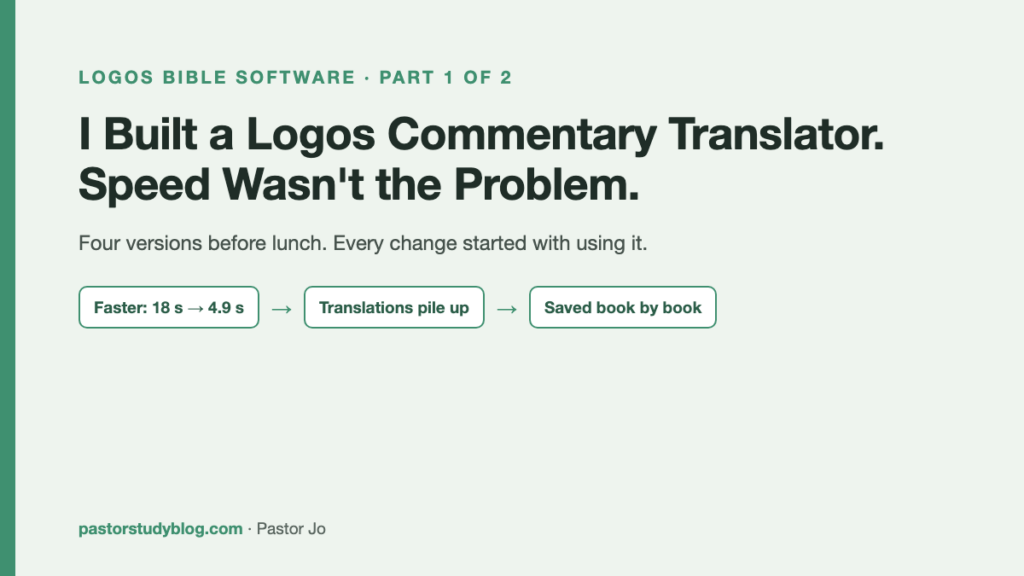
- From my first request at 11:31 to the fourth version at 12:38, every change started the same way: I used it, and something got in the way. None of the four was planned.
- The biggest fix was not speed. It was making sure the translation I had already read did not disappear.
On Saturday morning, 10 October 2026, I had an English commentary on Judges open in Logos. The next day was Sunday, and my sermon text was Judges 18.
Logos is full of good English commentaries. But for me, an English commentary is always a book I can read, only slowly. I read a paragraph, look up a word, go back to the sentence before it, and the Saturday morning is gone.
If you read your commentaries in a second language, whatever your first language is, you may know that kind of morning. This post is about the small tool I built that day, and about what kept changing it.
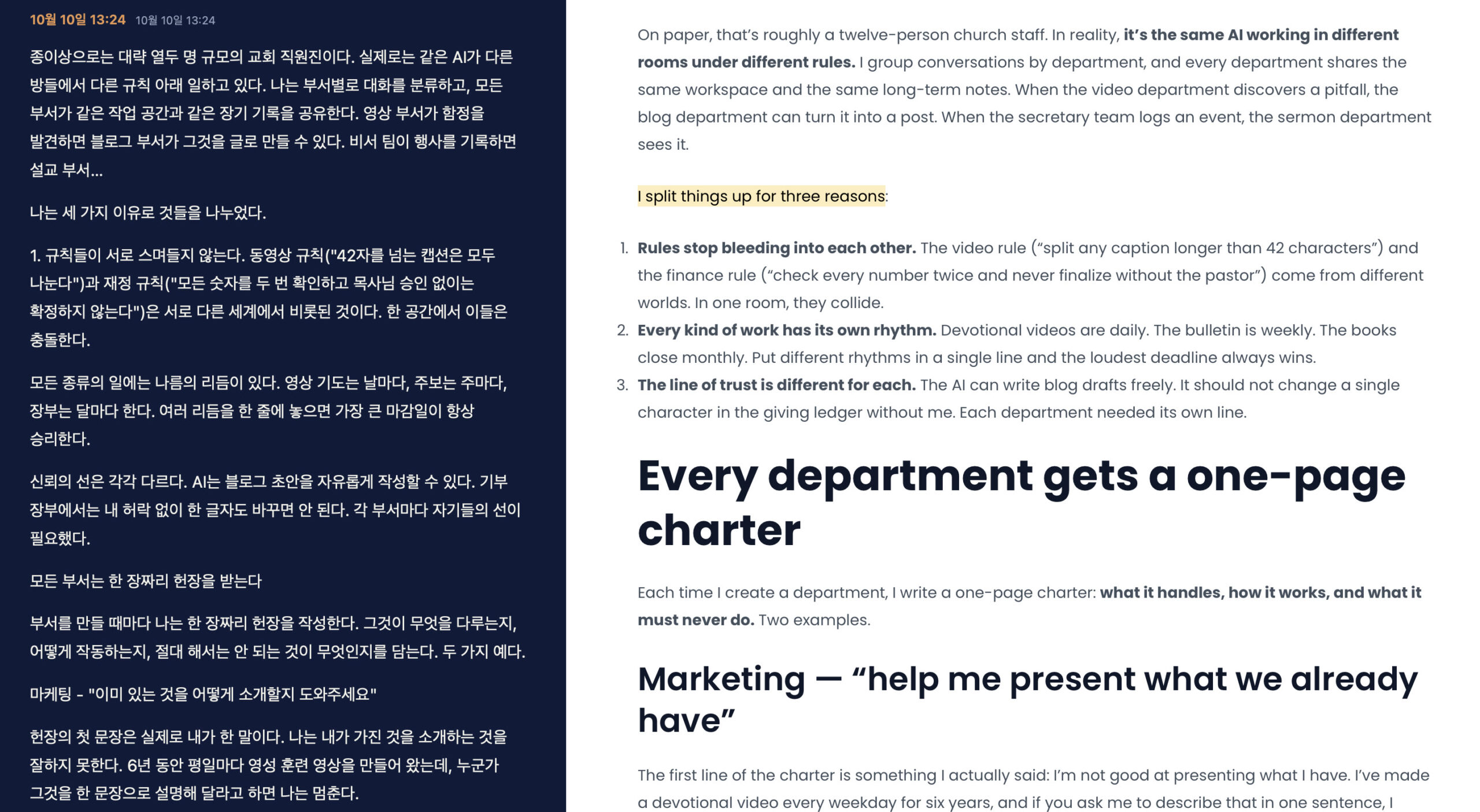
(The page being translated in that screenshot is my post about giving AI departments instead of one chat window.)
At 11:31 I asked Claude, in Korean, something close to this: “I wish I could translate an English book open in Logos into Korean right away. Could you build something like that?”
By lunchtime the app had changed four times. This post is the story of those four changes. How it got fast is a separate story, and it gets its own post next.
Version 1 (11:45): read the screen the way a person does
Other programs have no direct way to pull the text of a book out of Logos. So the approach Claude chose was very simple: take a picture of the screen, read the English text in the picture, and have Claude translate it. It is the same order a person follows. Look, read, translate.
Using it is simple too. Put the mouse over the commentary and press Control-Option-T (⌃⌥T). The app picks only the one column under the mouse and translates it.
That “one column” part mattered more than I expected. A Logos window is usually split into panes: the Bible on the left, a commentary in the middle, a dictionary on the right, something like that. When I tested it, the Korean Bible in the pane right next to the commentary did not get mixed in, and neither did the dictionary.
The translation fills a navy reading panel on the left of the Logos window as it arrives. A few details were there for Korean readers:
- Names follow the Korean church Bible. Proper nouns use the spellings of the Korean Revised Version (개역개정), the translation most Korean churches read.
- References come out the Korean way, like “삿 20:27”, the short Korean form of Judges 20:27.
- Hebrew and Greek are not guessed. Hebrew and Greek letters break when the screen is read as text. Instead of letting the translation make up something plausible, the app shows a bracketed marker that means “original language” (〔원어〕). Transliterations such as hesed come through fine.
If your language is not Korean, those are the lines you would write differently: which Bible’s names, which reference style, and what to do with the original languages.
Version 1 was ready at 11:45, fourteen minutes after I asked. One column of commentary, about 440 words, took 18 seconds to translate. One job was mine: turning on the Screen Recording permission the first time it ran. That is a macOS security setting, and Claude could not switch it on for me.
Version 2 (12:02): any English, and faster
Using it, I noticed two things. First, I wanted to translate more than Logos: other English books, PDFs, web pages. Second, it felt a little slow. Eighteen seconds looks short written down. Sitting in front of the screen with nothing to do but wait, it is a long time.
Version 2 arrived at 12:02. The same column now took 4.9 seconds. And Control-Option-A (⌃⌥A) switched on an automatic mode, so I did not even need the shortcut:
- Rest the mouse over English text, hold still for about a second, and it translates on its own.
- Scroll, and when the screen stops moving, it translates the new screen.
- Places with little English, such as menus or a page in Korean, are skipped.
- Translated paragraphs are saved, so scrolling back brings them up without translating them again.
How 18 seconds became 4.9 is the subject of part 2.
Version 3 (12:12): why I didn’t want to use it
Then, using the faster app, I found that the real problem was not speed. Every time a new translation started, the previous one vanished.
A commentary does not fit on one screen. I scrolled down, and the paragraphs I had just read were wiped. I scrolled back up to check something, and they were wiped again. Reading a commentary means moving back and forth, and the app would not let me do that. So I stopped wanting to use it.
I told Claude exactly that: the earlier translations disappear, and it makes me not want to use the app. At 12:12, version 3 was ready. Now the translation is never erased. It piles up. (The app’s labels are in Korean; I have translated them here.)
- Scroll down, and new paragraphs are added below the existing translation. Scroll up, and they are inserted above it.
- Paragraphs already translated stay where they are. Passing them again does not translate them again, so they show up in 0.8 seconds and cost no Claude usage.
- A paragraph cut in half at the edge of the screen gets repaired on the next screen. The app finds where the two screens overlap and replaces the half with the whole paragraph, joined front to back.
- Move to another book or another app, and the app adds a small heading, like “Logos 12:07”, and keeps stacking below it.
- The Copy button copies everything that has piled up. Paste it into Notion and it becomes a devotional note.
Speed is something you can measure. “Why I don’t want to use this” only shows up when you use it. When we built version 2, Claude and I were both thinking “faster.” Neither of us thought “keep the earlier translation.”
If you build tools this way, notice where that change came from. Not from a feature request, but from a plain complaint about how the app felt to use.
Version 4 (12:38): pick up where I left off, book by book
Piling up was good, but when I closed the app, everything was gone. And the books I reach for during my daily quiet time are mostly the same few. I read a commentary yesterday and continue it today. So I asked once more: keep what I have read, book by book, and let me choose it from the left side of the reading panel.
Version 4 appeared at 12:38.
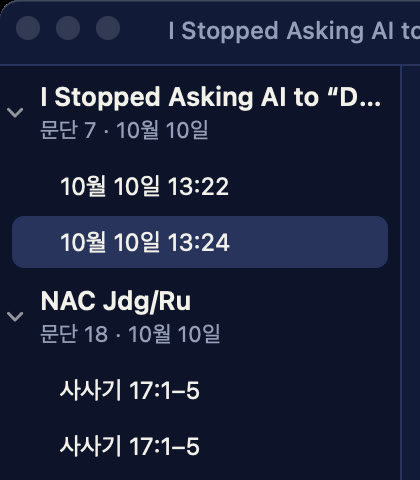
- Translations are saved separately for each book, and they are still there after the app is closed and opened again.
- A book list now sits on the left of the reading panel. Under each book, the parts I have read are named by their reference range, like “Judges 17:1–5 ~ 18:3”. Books without Bible references are named by date.
- The app works out which book I am reading by itself. In Logos it reads the name of the open tab at the top. In other apps it uses the window title.
- Right-click an entry in the list to rename, copy or delete it.
The one line I keep
I use the translations from this app for my own study only. I do not copy translated text into blog posts or handouts. That is also why the only translation you see in this post is of my own writing.
The books belong to their authors and publishers. When I bought a book in Logos, I bought the right to read it. If you build something similar, please keep this line too.
What one hour taught me
I first asked at 11:31. Version 4 appeared at 12:38. Looking back, not one of the four changes was planned. Every one began after using the app. I used it and wanted other books. I used it and it was slow. I used it and the earlier translation vanished. I used it and wanted to pick up yesterday’s book.
For a small-church pastor, I think this kind of tool fits better than a finished product made by someone else: one I shape by naming, one at a time, the places where it gets in my way. The person who knows those places best is the one who sits at the same desk every week. In my church, that’s me.
The part that made this tool worth using was not clever code. It was noticing what bothered me and saying it plainly.
To pastors who sigh before they even open an English commentary: I hope this gives you a little courage to think, “I could ask for something like this too.” And I hope the time it saves becomes a little more time spent with the text itself.
Next: from 18 seconds to 4.9
In part 2, I open the app up: how 18 seconds became 4.9, how it can tell that the screen has stopped moving, and the traps we ran into while building it. It is written so you can follow it without reading code.