In short
- A one-in-the-morning check before Sunday found three problems: the livestream had never been scheduled, the lower third still carried last week’s sermon title, and the camera bridge had been dead for more than a day.
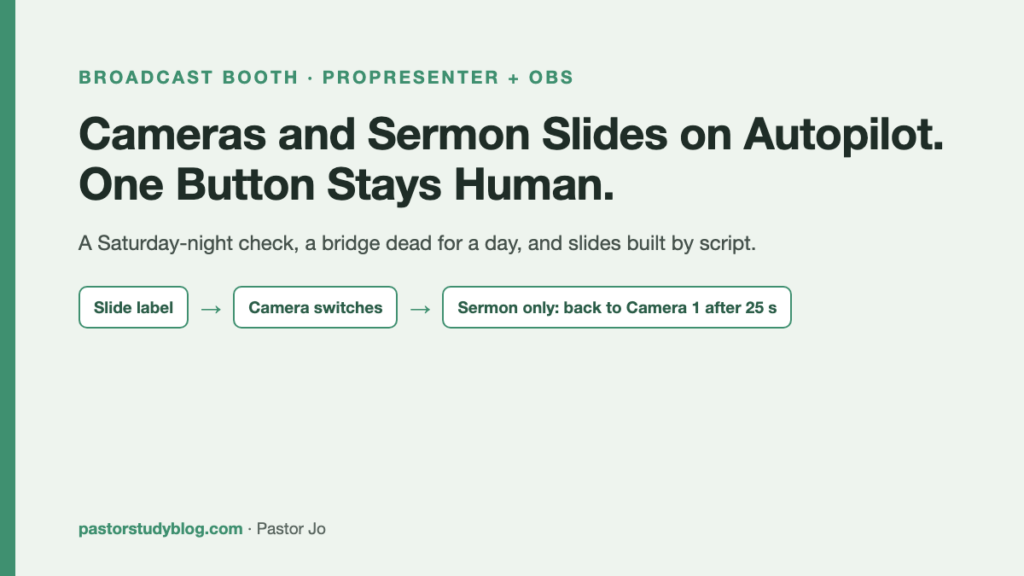
- The rebuilt bridge now has one new rule: during the sermon only, a side camera returns to the main camera after 25 seconds. Announcement scenes switch too, but never auto-return.
- The sermon slides are now built by script: 22 video clips become a ProPresenter presentation with camera labels, props and a look already inside the file. A human still presses the last button, on purpose.
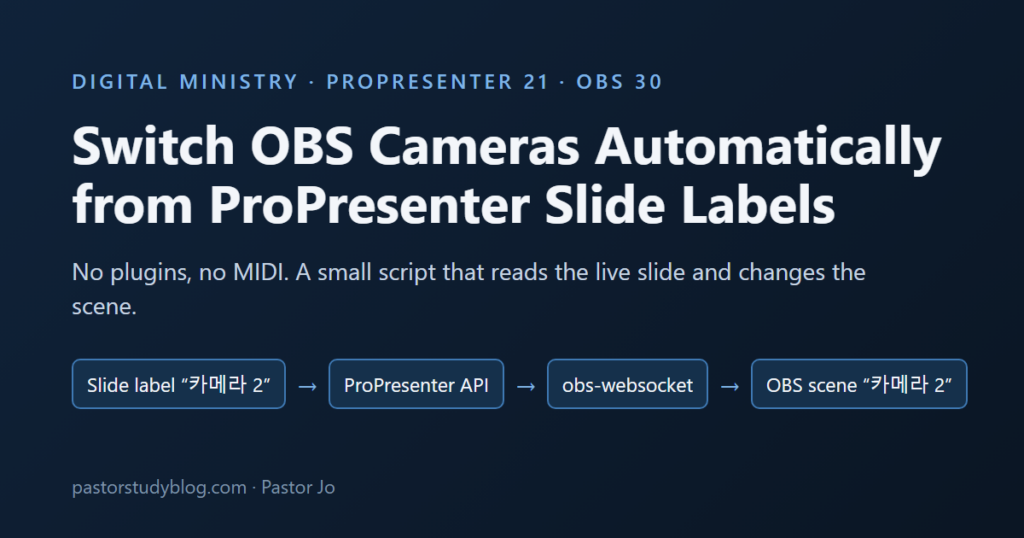
This post continues a thread from the small broadcast booth in our church. In one post I made OBS switch cameras whenever a ProPresenter slide label matched a scene name. In the next, that bridge died quietly while its process still looked busy. In another, I started putting songs into playlists by command, and ended up building presentation files by hand.
This one covers a single night, Saturday 3 October into Sunday 4 October 2026. By morning, the cameras and the sermon slides were both automatic. That was not the plan for the night. The night started with three things that had quietly not happened.
Saturday night: the bulletin was done, and nothing else was
Every Saturday I make the bulletin. That part is automated and it worked. Late on Saturday night I asked my AI assistant one plain question: is the broadcast set up for tomorrow?
It was not. Around 1 a.m. we found that the bulletin had been made, and that was all. The YouTube live event had never been created, and the Instagram post for Sunday morning had never been scheduled. Nothing had failed with an error. Those steps simply were not attached to the bulletin step, so nobody started them.
The fix was a rule, not code. Starting the bulletin now means starting the whole Sunday set: the live event and its start timer, the bulletin card, the sermon cards, the sermon presentation, and the 8 a.m. Instagram post. One trigger, one checklist. If the bulletin exists, the rest has to exist too, or the check reports what is missing.
The lesson is an old one in a new place. Steps that depend on someone remembering are steps that will eventually be skipped. Tie them to something that always happens.
The lower third had last week’s sermon title
The second find came from an unrelated test. I was replaying the 27 September recording to test speech recognition (more on that at the end), and noticed the lower third on the livestream: the sermon title shown was the previous week’s. The slide in the room was right. The text on the stream was not.
Nobody in the room would ever see it, because the room does not show the stream. That is exactly why it survived. The Saturday checklist now has one more line: compare the lower-third title against this week’s sermon title.
The bridge had been dead since Friday night
The third find was the worst, and it is a direct sequel to the silent-failure post.
On 30 September I had asked for a new feature: if a side camera stays on screen too long, go back to the main camera. A revised bridge was installed. I was told it was done.
When the AI session on the booth PC read the log that Saturday night, the bridge had not been running since 23:09 on Friday 2 October. The revised version crashed the moment it started. Two plain bugs:
- A settings function returned three values, and the caller expected four.
- The code called a helper function that did not exist.
And the auto-return feature itself? It was only in the example settings file. The setting was documented. The code that would read it was never written.
Last time, the bridge was alive and not working. This time it was simply dead, and nobody noticed for a day, because nobody changes a slide on a day with no service. The lesson I wrote down is short: a fix is not finished until you have seen it running. Not “the file was changed.” Not “the settings mention it.” Running, with a log line that proves it.
The new bridge rules
The rebuilt bridge went live at 01:09 on Sunday morning. The core rule has not changed: if the live slide’s label is exactly the name of an OBS scene, switch to that scene. What changed is the list of scenes it is allowed to touch, and when it comes back on its own.
1. An allow-list, now with announcement scenes
The bridge only switches to scenes on an explicit list: Camera 1 to Camera 4, and now Announcement Camera 1 to Announcement Camera 4. (Our scene names are in Korean; I have translated them here.)
The announcement scenes solve a real problem. In the sanctuary, an announcement slide should fill the screen. On the livestream, a full-screen slide means viewers lose the person speaking. So each announcement scene shows a camera with the announcement slide in the upper third. Label the slide “Announcement Camera 2” and the room gets the full slide while the stream gets the camera with the slide on top.
Any label not on the list is ignored. That matters more than it sounds. Our library is full of old labels that were never meant for OBS, and one earlier alias (a “photo” label mapped to a picture-in-picture scene) is now ignored too. An allow-list means a forgotten label cannot move a camera.
2. Announcement scenes never auto-return
An announcement can take two minutes. It should stay up as long as the slide is up. When the labeled slides end, the bridge returns to whatever scene was on before, as it always has.
3. Auto-return happens only during the sermon
This was the feature that never existed. Now it does, with a narrower scope than I first asked for. The bridge looks at the name of the live presentation. Only if it starts with “Sermon” or “Scripture” does the timer apply: Camera 2, 3 or 4 on screen for 25 seconds, and the bridge goes back to Camera 1.
Why only the sermon? During songs, a side camera on the band for a whole verse is fine. During a sermon, a side shot that stays too long usually means the operator got busy, and the main camera is the safe place to land.
I first set it at 45 seconds. Watching it, that felt long, so it became 25. The settings now look roughly like this (simplified, names translated):
[Switch]
switch_scenes = Camera 1, Camera 2, Camera 3, Camera 4,
                Announcement Camera 1, Announcement Camera 2,
                Announcement Camera 3, Announcement Camera 4

[AutoReturn]
auto_return_seconds = 25
return_to = Camera 1
sermon_presentations = Sermon, Scripture
The test: with a sermon presentation live, switch to Camera 2 and wait. The log showed the return to Camera 1 after 25 seconds. With an announcement scene on screen, it stayed put for over a minute and returned only when the labeled slides ended. Both checked that night, before the service.
One trade-off I chose knowingly: the 25-second return also applies when the operator switches by hand. Our booth volunteers are still learning, so for now I would rather the system pull back to the main camera too often than leave a stray shot on air. If it gets annoying, that rule is one line to change.
Sermon slides, built by script
The cameras were half the night. The other half was the slides.
My sermon slides are short animated video clips, one per point. This week there were 22. In the songs post I described reading and writing ProPresenter’s presentation files directly, without any third-party library, after checking that a parsed and rebuilt file came out byte-for-byte identical. That same tool now turns a folder of clips into a finished presentation.
The flow:
- Build the presentation file from the 22 clips, each set to stop on its last frame, not loop.
- Put it in a shared cloud folder.
- On the booth PC, import it into the ProPresenter library.
- Through ProPresenter’s network API, place it in the sermon slot of Sunday’s playlist.
New this week: labels, props and a look inside the file
A presentation of bare slides is not enough anymore. For the bridge to do its job, each slide needs a camera label. For the stream to show which point we are on, each slide triggers a prop. And the first slide should switch ProPresenter’s screen setup (a “look”) to the sermon layout.
So the script now writes all three into the file:
- Label: every slide gets the camera label for the sermon scene, so the bridge switches when the slides start and the 25-second rule takes over from there.
- Props: slide N triggers prop N. Our default prop collection has props numbered 1 to 29.
- Look: slide 1 switches to the “Sermon” look.
How did I know what those actions look like inside the file? The same way as last time: I did not guess. The booth already had a presentation, built by hand in ProPresenter, that used a look and a prop. I read that file as the answer key and copied the exact shape of each action. When there is no documentation, a file that a human made in the real app is the specification.
What the API can and cannot do
Why write into the file at all, when ProPresenter has a network API? Because the API stops short in different places for different things. Here is what I found in ProPresenter 21.3.1:
| Item | Through the API | So I do it |
|---|---|---|
| Looks | Create and edit (which layers show on which screen) | API, or in the file |
| Props | Trigger and clear only. The picture inside a prop cannot be changed. | Trigger from the slide, in the file |
| Slide labels | Read only. Cannot be edited. | In the file |
| Presentations | No create, no duplicate, no import | Build the file, then import |
| Playlists | Replace the whole list (no duplicate songs) | API, with a check first |
The pattern: the API is good at running a service, not at preparing one. Anything that has to exist before Sunday goes through the file.
Two mistakes from the same night
Slide order. One version of the presentation had two slides in the wrong place. The clips were sorted by file name, and a clip named like “11-2” sorted before “11.” The fix was to order the slides by the page number printed on each slide, not by file name. The corrected version arrived late enough that we used the earlier one for the service and simply knew where the swap was.
A song lost from the playlist. When placing the sermon presentation into the playlist, the tool replaced position 13 without reading the playlist again first. In the meantime the playlist had been edited by hand in ProPresenter, and position 13 was now a closing song, not the sermon. It was overwritten. Because that song appeared twice in the list, the automatic restore could not bring it back either. (The same duplicate-song limit from the songs post, again.)
The tool now refuses to replace anything unless you also tell it the name of what you expect to find at that position. If the name does not match, it stops. It is a small change, and it is the kind of check that only gets added after something is lost.
The button a human still presses
One step is still manual. The AI session on the booth PC runs under a safety layer that treats importing into the ProPresenter library and editing the bridge as changes to shared resources, and blocks them. So the last step, the import and the bridge change, was done by me at the booth PC’s terminal.
At 1 a.m. that felt like friction. Looking back, I want it there. The library and the bridge are what the whole service runs on. A human press at that one point is cheap, and this night alone produced a crashing bridge from a previous “done” and a lost song from a replace that did not look first. I am working on a smaller version of the same idea (a watched folder that imports new files, set up once by hand), but the human approval stays.
What I took away
Tie forgotten steps to a step that always happens. The bulletin always gets made. Now the livestream, the cards and the slides start with it.
Check what the room cannot see. The lower third was wrong for a week because nobody in the sanctuary watches the stream.
“Done” means seen running. A feature in a settings example is not a feature. A bridge that was fixed and never started is not fixed.
Narrow every automatic rule. Switch only to listed scenes. Return only during the sermon. Replace only when the expected item is there.
Keep one human button where it matters most.
Next: say it, and the slide changes
The cameras follow the slides. The slides are built for me. The last manual part of the sermon is advancing the slides themselves.
I am testing speech recognition on the booth PC (faster-whisper on its graphics card), first against last week’s recording. The obvious design is “move to the next slide when I say the cue line.” I am not doing that, because I do not read my manuscript word for word. I skip paragraphs. I come back to points.
So each slide gets its own cue sentence, and the sentence I actually say chooses the slide. If the match is unclear, nothing moves. A jump to a slide far from the current one needs a higher score. And whoever is at the desk can override it at any moment. The default mode only logs what it would have done.
An early replay test looked promising, but it was an easy test, so I will not quote it as a result. When I have numbers from a live service, they will get their own post.